If you are like me and installed the new Oracle SQL developer 2.1 Early Adopter edition on your mac you might have noticed that your user snippets are gone. Also that the directory where you could normally back them up from is no longer working. Well, its only stored in a new location and you can find all your SQL developer settings like your UserSnippets.xml, UserReports.xml and SqlHistory.xml in there.
SQL Developer 1.x location:
/Users/youruser/Library/Application Support/SQLDeveloper/
SQL Developer 2.1 EA location:
/Users/youruser/.sqldeveloper/
Also note that the new directory is a hidden folder so you might need to use the terminal (or any other way you access hidden files) to access it.

Showing posts with label mac os x. Show all posts
Showing posts with label mac os x. Show all posts
Tuesday, November 17, 2009

Tuesday, March 17, 2009
SQL*Plus command history on Mac OS X
Anyone who has tried and use SQL*Plus on Unix would have seen that its quite frustrating since it does not have a command history function under Linux and Unix. When you try to use the ‘up’ key, you get something like this:
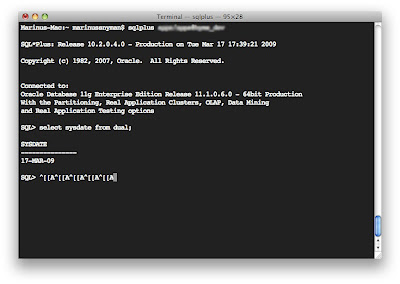 However there is a utility called rlwrap that can help us fix this problem. rlwrap is a readline wrapper for shell commands which uses input from the controlling terminal. It adds a persistent input history for each command and supports user-defined completion.
Here are the steps to install rlwrap on Mac OS X:
1. Download Macports from http://darwinports.com/ (If you don't have it already)
2. Install macports.
3. Update macports. Go to /opt/local/bin and type the following:
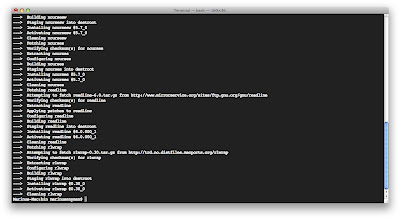
4. Install rlwrap with the following command (You will see it will install some dependencies too):
 5. Add the following line to your .bash_profile:
6. Launch SQL*plus as usual and use rlwrap to access your sql history!

 However there is a utility called rlwrap that can help us fix this problem. rlwrap is a readline wrapper for shell commands which uses input from the controlling terminal. It adds a persistent input history for each command and supports user-defined completion.
Here are the steps to install rlwrap on Mac OS X:
1. Download Macports from http://darwinports.com/ (If you don't have it already)
2. Install macports.
3. Update macports. Go to /opt/local/bin and type the following:
| sudo ./port -d selfupdate |
4. Install rlwrap with the following command (You will see it will install some dependencies too):
| sudo ./port install rlwrap |
 5. Add the following line to your .bash_profile:
| alias sqlplus='/opt/local/bin/rlwrap sqlplus' |
6. Launch SQL*plus as usual and use rlwrap to access your sql history!

Sunday, March 15, 2009
Using Oracle BPEL on Mac OS X Leopard
There is some irritating bugs in Jdeveloper 10134 and the use of BPEL on Mac OS X - Leopard. Here is what they are, and how I fixed / or got workarounds for them:
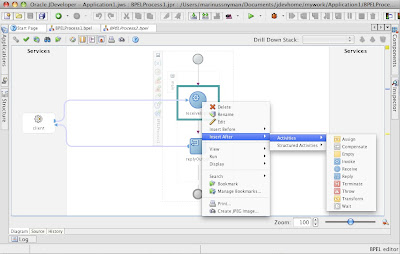
The first and biggest problem is not being able to drag a Service from the Component Palette into the BPEL Process diagram. You also can't drag in functions in your transformations. This is quite frustrating since it is a known bug on metalink, but not yet fixed. (Bug Number 6924432) Well there is a easy workaround for the BPEL process diagram. You can rightclick on any of the Process Activities and go to Insert After > Activities > Activity.
 But what if you created a Empty BPEL process? Whell then you'll have to go to the source and add a empty node (<empty/>) to get you started.
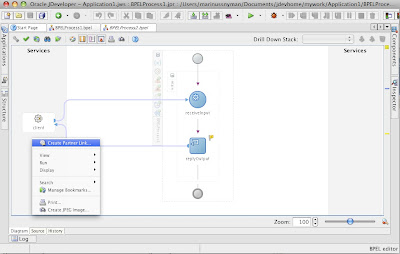
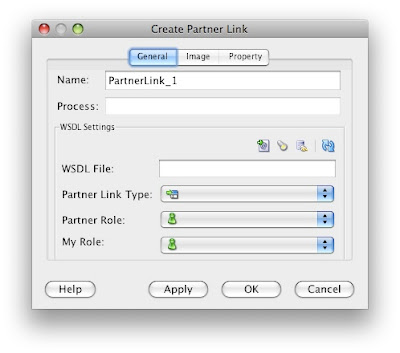
Its just as easy to add a Partnerlink. Right-click in the Services area of the screen, and select Create new Partnerlink.
On the transformation side of things it's not quite that easy to work around. The best solution I could come up with is to add the functions directly to the source code in the source tab.
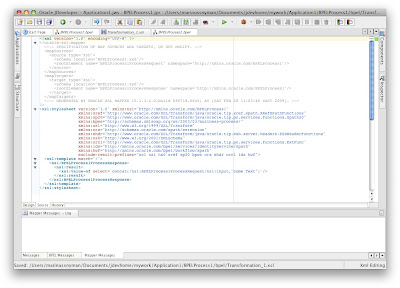
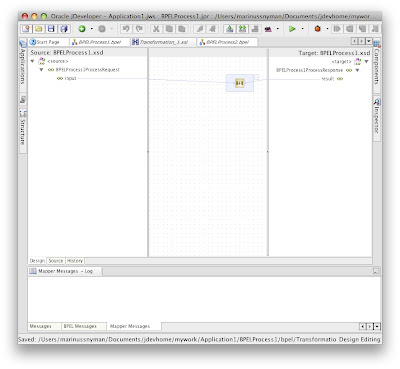
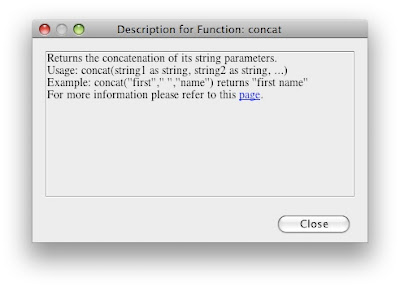
This might not be the best solution, but will centainly work and enable you to create BPEL processes without VMware or Parallels. And will definitely improve your xsl knowledge.. ;-) You can also rightclick ->Help on a function to get information on how to use it.
 The second problem I experienced was that my jdeveloper kept crashing when I wanted to edit a partnerlink. I tried changing the JDK versions it used with no luck. What I found was, as soon as I open jdeveloper I "create a partnerlink" but click cancel right afterwards. Why this worked for me, I don't know, but it certainly solved my problem.
 The third and last issue I had was that when launching jdeveloper it doesn't close the terminal
The first and biggest problem is not being able to drag a Service from the Component Palette into the BPEL Process diagram. You also can't drag in functions in your transformations. This is quite frustrating since it is a known bug on metalink, but not yet fixed. (Bug Number 6924432) Well there is a easy workaround for the BPEL process diagram. You can rightclick on any of the Process Activities and go to Insert After > Activities > Activity.
 But what if you created a Empty BPEL process? Whell then you'll have to go to the source and add a empty node (<empty/>) to get you started.
Its just as easy to add a Partnerlink. Right-click in the Services area of the screen, and select Create new Partnerlink.


 The second problem I experienced was that my jdeveloper kept crashing when I wanted to edit a partnerlink. I tried changing the JDK versions it used with no luck. What I found was, as soon as I open jdeveloper I "create a partnerlink" but click cancel right afterwards. Why this worked for me, I don't know, but it certainly solved my problem.
 The third and last issue I had was that when launching jdeveloper it doesn't close the terminal
window. What I did to fix that was to add the JDeveloper directory to my PATH environment variable and then launch jdeveloper with the following command:
This will exit the terminal window after opening JDeveloper. To add the JDeveloper ditectory to your path open your .bash_profile file and add the following line:
Hope this post will help you use BPEL on Mac OS X Leopard!
| jdev &exit |
This will exit the terminal window after opening JDeveloper. To add the JDeveloper ditectory to your path open your .bash_profile file and add the following line:
| export PATH=$PATH:"/Applications/jdevstudio10134/jdev/bin" |
Hope this post will help you use BPEL on Mac OS X Leopard!
Subscribe to:
Posts (Atom)