If you are like me and installed the new Oracle SQL developer 2.1 Early Adopter edition on your mac you might have noticed that your user snippets are gone. Also that the directory where you could normally back them up from is no longer working. Well, its only stored in a new location and you can find all your SQL developer settings like your UserSnippets.xml, UserReports.xml and SqlHistory.xml in there.
SQL Developer 1.x location:
/Users/youruser/Library/Application Support/SQLDeveloper/
SQL Developer 2.1 EA location:
/Users/youruser/.sqldeveloper/
Also note that the new directory is a hidden folder so you might need to use the terminal (or any other way you access hidden files) to access it.

Showing posts with label mac. Show all posts
Showing posts with label mac. Show all posts
Tuesday, November 17, 2009

Sunday, March 15, 2009
Using Oracle BPEL on Mac OS X Leopard
There is some irritating bugs in Jdeveloper 10134 and the use of BPEL on Mac OS X - Leopard. Here is what they are, and how I fixed / or got workarounds for them:
The first and biggest problem is not being able to drag a Service from the Component Palette into the BPEL Process diagram. You also can't drag in functions in your transformations. This is quite frustrating since it is a known bug on metalink, but not yet fixed. (Bug Number 6924432) Well there is a easy workaround for the BPEL process diagram. You can rightclick on any of the Process Activities and go to Insert After > Activities > Activity.
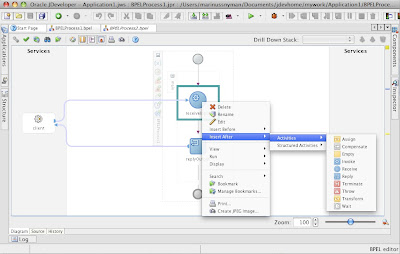 But what if you created a Empty BPEL process? Whell then you'll have to go to the source and add a empty node (<empty/>) to get you started.
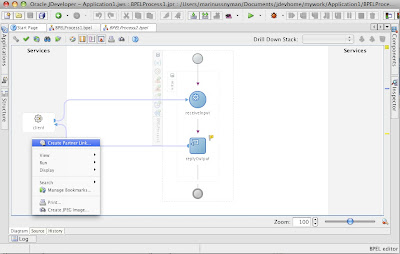
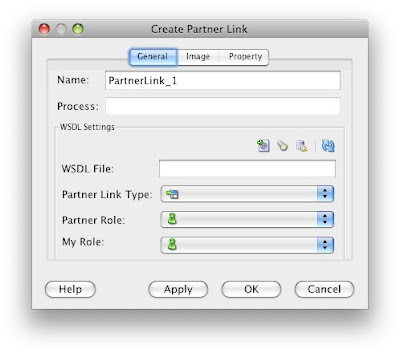
Its just as easy to add a Partnerlink. Right-click in the Services area of the screen, and select Create new Partnerlink.
On the transformation side of things it's not quite that easy to work around. The best solution I could come up with is to add the functions directly to the source code in the source tab.
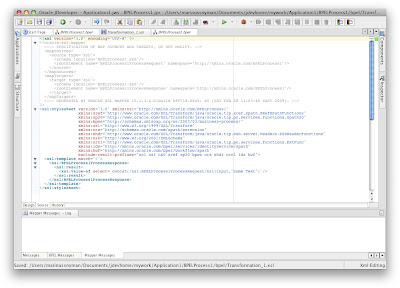
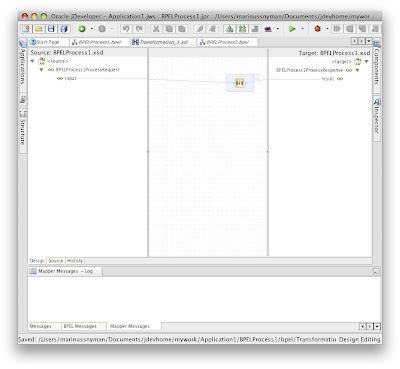
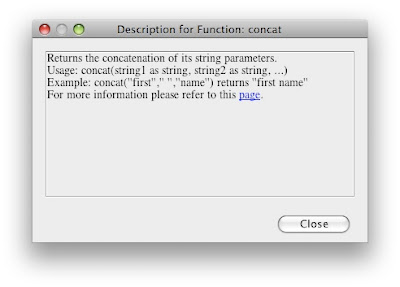
This might not be the best solution, but will centainly work and enable you to create BPEL processes without VMware or Parallels. And will definitely improve your xsl knowledge.. ;-) You can also rightclick ->Help on a function to get information on how to use it.
 The second problem I experienced was that my jdeveloper kept crashing when I wanted to edit a partnerlink. I tried changing the JDK versions it used with no luck. What I found was, as soon as I open jdeveloper I "create a partnerlink" but click cancel right afterwards. Why this worked for me, I don't know, but it certainly solved my problem.
 The third and last issue I had was that when launching jdeveloper it doesn't close the terminal
The first and biggest problem is not being able to drag a Service from the Component Palette into the BPEL Process diagram. You also can't drag in functions in your transformations. This is quite frustrating since it is a known bug on metalink, but not yet fixed. (Bug Number 6924432) Well there is a easy workaround for the BPEL process diagram. You can rightclick on any of the Process Activities and go to Insert After > Activities > Activity.
 But what if you created a Empty BPEL process? Whell then you'll have to go to the source and add a empty node (<empty/>) to get you started.
Its just as easy to add a Partnerlink. Right-click in the Services area of the screen, and select Create new Partnerlink.


 The second problem I experienced was that my jdeveloper kept crashing when I wanted to edit a partnerlink. I tried changing the JDK versions it used with no luck. What I found was, as soon as I open jdeveloper I "create a partnerlink" but click cancel right afterwards. Why this worked for me, I don't know, but it certainly solved my problem.
 The third and last issue I had was that when launching jdeveloper it doesn't close the terminal
window. What I did to fix that was to add the JDeveloper directory to my PATH environment variable and then launch jdeveloper with the following command:
This will exit the terminal window after opening JDeveloper. To add the JDeveloper ditectory to your path open your .bash_profile file and add the following line:
Hope this post will help you use BPEL on Mac OS X Leopard!
| jdev &exit |
This will exit the terminal window after opening JDeveloper. To add the JDeveloper ditectory to your path open your .bash_profile file and add the following line:
| export PATH=$PATH:"/Applications/jdevstudio10134/jdev/bin" |
Hope this post will help you use BPEL on Mac OS X Leopard!
Sunday, March 1, 2009
Setting an environment variable in Mac OS X
Setting the environment variable in files like .bash_profile won't work (unless you launch the application from the terminal) because in OSX the applications are not started as in other UNIX'es, they don't inherit the parents shell variables.
Applications like Oracle JDeveloper for mac also don't work by just setting .bash_profile. The only way is to edit /etc/launchd.conf to contain a line like this: "setenv VAR value" and then reboot the system.
Applications like Oracle JDeveloper for mac also don't work by just setting .bash_profile. The only way is to edit /etc/launchd.conf to contain a line like this: "setenv VAR value" and then reboot the system.
Monday, January 5, 2009
Install & Use Oracle SQL Developer 1.5.x on a Mac
1. Line Terminator – If you work like me in a Windows dominant office, you'll be sure to change your line terminator from “Platform Default” to “Windows”. This will insure that your newline caracters you add also show up on a Windows, Linux and Mac computer so you can't go wrong with that setting.
2. Fontsize – On my Macbook pro 15” the fontsize is way too small for me. To do this go to Tools -> Preferences -> Code Editor -> Fonts. I changed mine from the default 12 to 15 on Monospaced.
3. Colors – Coming from Toad, the default SQL Developer text color's are downright ugly. I liked the Toad color scheme, so I changed mine to the same colors. To do this go to Tools -> Preferences -> Code Editor -> Syntax Colors. Change the following colors:

Another few changes I have made is to the accelerators.You can find them under Tools -> Preferences ->Accelerators.1. Popup Describe – I made this F4. (The same as Toad)
2. Execute Statement – I made mine Cmd+Enter and CTRL+Enter.
Done!
To install Oracle SQL Developer on a Mac is as easy as installing any application on a Mac. Just unzip the downloaded archive (download it from here), and drag the file to your applications folder. SQL Developer is a great SQL tool for the mac, but there are quite a few things I didn't like with its default settings, so here's what I changed:
1. Line Terminator – If you work like me in a Windows dominant office, you'll be sure to change your line terminator from “Platform Default” to “Windows”. This will insure that your newline caracters you add also show up on a Windows, Linux and Mac computer so you can't go wrong with that setting.
2. Fontsize – On my Macbook pro 15” the fontsize is way too small for me. To do this go to Tools -> Preferences -> Code Editor -> Fonts. I changed mine from the default 12 to 15 on Monospaced.

3. Colors – Coming from Toad, the default SQL Developer text color's are downright ugly. I liked the Toad color scheme, so I changed mine to the same colors. To do this go to Tools -> Preferences -> Code Editor -> Syntax Colors. Change the following colors:
- Default Keyword –> Blue. Also turn off Bold.
- Default Comment –> Green.
- Default String –> Red.
- Default Number –> Dark red.
- Selected Text – Foreground -> Black. Background –> Light Grey.
Another few changes I have made is to the accelerators.You can find them under Tools -> Preferences ->Accelerators.

2. Execute Statement – I made mine Cmd+Enter and CTRL+Enter.
Done!
Monday, August 4, 2008
Connect to a Windows Server VPN from Leopard
Well I had some trouble connecting to a Windows Server VPN with Leopard, and found a very simple solution. I don't know if this will work in all cases, but here goes anyway..
Goto System Preferences -> Network. Then click on the little "+" sign at the bottom left saying Create a new service when you hover the mouse over it. Choose VPN for Interface, and PPTP for VPN Type. Add a New Configuration, type in your Server Address, Account Name (This is your VPN username), and under Authentication Settings your password.
When I did all of this I could connect, but couldn't access anything on the network. The fix was to go to "Advanced" and check the Send all traffic over VPN connection option.

After doing all this you should be able to connect and access the network.
Goto System Preferences -> Network. Then click on the little "+" sign at the bottom left saying Create a new service when you hover the mouse over it. Choose VPN for Interface, and PPTP for VPN Type. Add a New Configuration, type in your Server Address, Account Name (This is your VPN username), and under Authentication Settings your password.
When I did all of this I could connect, but couldn't access anything on the network. The fix was to go to "Advanced" and check the Send all traffic over VPN connection option.

After doing all this you should be able to connect and access the network.
Monday, July 21, 2008
Sqlplus on a Mac with Oracle Instant Client
One of the things any Oracle developer uses is sqlplus, but getting it to work on Mac OS-X is not quite as easy as on Windows. Follow these steps to install sqlplus on your Mac.
1. Download the Oracle Instant Client Zip files:
3. Move the directory to where you want it. I put mine in /usr/local/oracle/instantclient_10_2.
4. Then go to this directory and make symbolic links for dynamic libraries.
5. I reccomend creating a tnsnames.ora file where you add all your connection details. I placed mine in /usr/local/oracle/network/admin.
Example of a tnsnames.ora file:
6. Then you need to set up necessary environment variables. I added mine to my .bash_profile script so they are alway's set when I run the terminal.
In your home folder you can type:
And then add the following lines at the end of the file (Make sure you set the PATH correctly otherwise sqlplus won't run):
7. You should now be able to run sqlplus. Close the terminal and re-lunch it. Now run:
8. Sqlplus should now run and look something like this:

1. Download the Oracle Instant Client Zip files:
- Instant Client Package - Basic
- Instant Client Package - SQL*Plus
- Instant Client Package - JDBC Supplement (Optional)
- Instant Client Package - SDK (Optional)
| unzip instantclient-basic-macosx-10.2.0.4.0.zip unzip instantclient-sqlplus-macosx-10.2.0.4.0.zip unzip instantclient-jdbc-macosx-10.2.0.4.0 #Optional unzip instantclient-sdk-macosx-10.2.0.4.0 #Optional |
3. Move the directory to where you want it. I put mine in /usr/local/oracle/instantclient_10_2.
| sudo mkdir /usr/local/oracle/ sudo mv instantclient_10_2 /usr/local/oracle/ |
4. Then go to this directory and make symbolic links for dynamic libraries.
| sudo ln -s libclntsh.dylib.10.1 libclntsh.dylib sudo ln -s libocci.dylib.10.1 libocci.dylib |
5. I reccomend creating a tnsnames.ora file where you add all your connection details. I placed mine in /usr/local/oracle/network/admin.
Example of a tnsnames.ora file:
| IDENTIFIER = (DESCRIPTION = (ADDRESS_LIST = (ADDRESS = (PROTOCOL = TCP) (HOST = userid.myhosteddb.net)(PORT = 1521)) ) (CONNECT_DATA = (SID = odb)) ) |
6. Then you need to set up necessary environment variables. I added mine to my .bash_profile script so they are alway's set when I run the terminal.
In your home folder you can type:
| vi .bash_profile |
And then add the following lines at the end of the file (Make sure you set the PATH correctly otherwise sqlplus won't run):
| export DYLD_LIBRARY_PATH="/usr/local/oracle/instantclient_10_2" export SQLPATH="/usr/local/oracle/instantclient_10_2" export TNS_ADMIN="/usr/local/oracle/network/admin" export NLS_LANG="AMERICAN_AMERICA.UTF8" export PATH=$PATH:$DYLD_LIBRARY_PATH |
7. You should now be able to run sqlplus. Close the terminal and re-lunch it. Now run:
| sqlplus [username]/[password]@[service] |
8. Sqlplus should now run and look something like this:

Saturday, July 5, 2008
Oracle E-Business Suite on a Mac
One of my first concerns as a Oracle developer when considering switching to a Mac was if I would be able to access Oracle E-Business Suite. (Or Oracle Applications as many may know it by) Even though the official Oracle E-Business suite blog (http://blogs.oracle.com/stevenChan/2006/08/18/) clearly states that is supports it, I know from previous experience that it can be quite a mission to work with Jinitiator (the java tool required to access Oracle forms), especially if you are a consultant and move between different sites who uses different versions of E-Business, and more importantly different Jinitiator versions. From different versions of Jinitiators that clash, to Firefox that don't recognize it, to Internet Explorer crashing on me, I always had problems on Windows, so surely getting it to work on a Mac must be quite a mission right? Wrong! Since E-Business on a Mac only uses Java and no Jinitiator its a breeze to use, and I could access E-Business with Safari without doing anything, or installing any plugins!

Apps Login screen
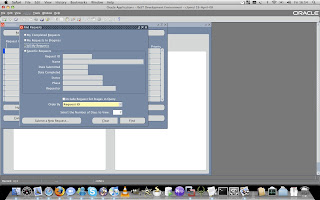
Find Concurrent Request

Shipping Transactions

Quoting Module

Workfow Monitor

Apps Login screen

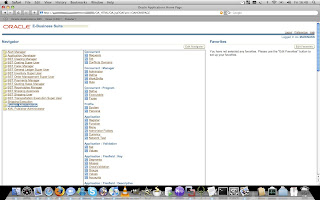
Apps Navigation Menu

Find Concurrent Request

Shipping Transactions

Quoting Module

Workfow Monitor
After it was sooo easy to login to E-Business from Safari, I thought there is no chance of Firefox working so easily. I fired up Firefox and logged into E-Business again without having to install anything. Awesome!

Oracle Financials in Firefox

Oracle Financials in Firefox
Something I did pick up though which is very annoying is the default assignments of the F-keys in Mac OS X. Since its the default way to search in E-Business with the F11-key, but in Leopard's System Prefrences its set to Desktop. The easiest way to get rid of this problem is to go to System Preferences -> Keyboard & Mouse -> Keyboard Shortcuts -> Desktop, and deselect it.

My conclusion is that it is even easier to work on Oracle E-Business suite on Mac OS X than on Windows, and I would recommend any E-Business user who is thinking of switching, to seriously consider it!

My conclusion is that it is even easier to work on Oracle E-Business suite on Mac OS X than on Windows, and I would recommend any E-Business user who is thinking of switching, to seriously consider it!
Applications Versions Used:
Mac OS X Leopard: 10.5.3
Safari: 3.1.1
Oracle E-Business Suite: 11i
Java: build 1.5.0_13-119
Firefox: 3.0
Mac OS X Leopard: 10.5.3
Safari: 3.1.1
Oracle E-Business Suite: 11i
Java: build 1.5.0_13-119
Firefox: 3.0
Subscribe to:
Posts (Atom)